
Free Notion Widgets: Clock, Calendar & Tracker Widgets You Can Embed Today
No sign-up, no code, no cost — add a live clock, calendar, or tracker to your workspace in under a minute.

Murad
Founder & CEO
August 6, 2026 · 4 min read
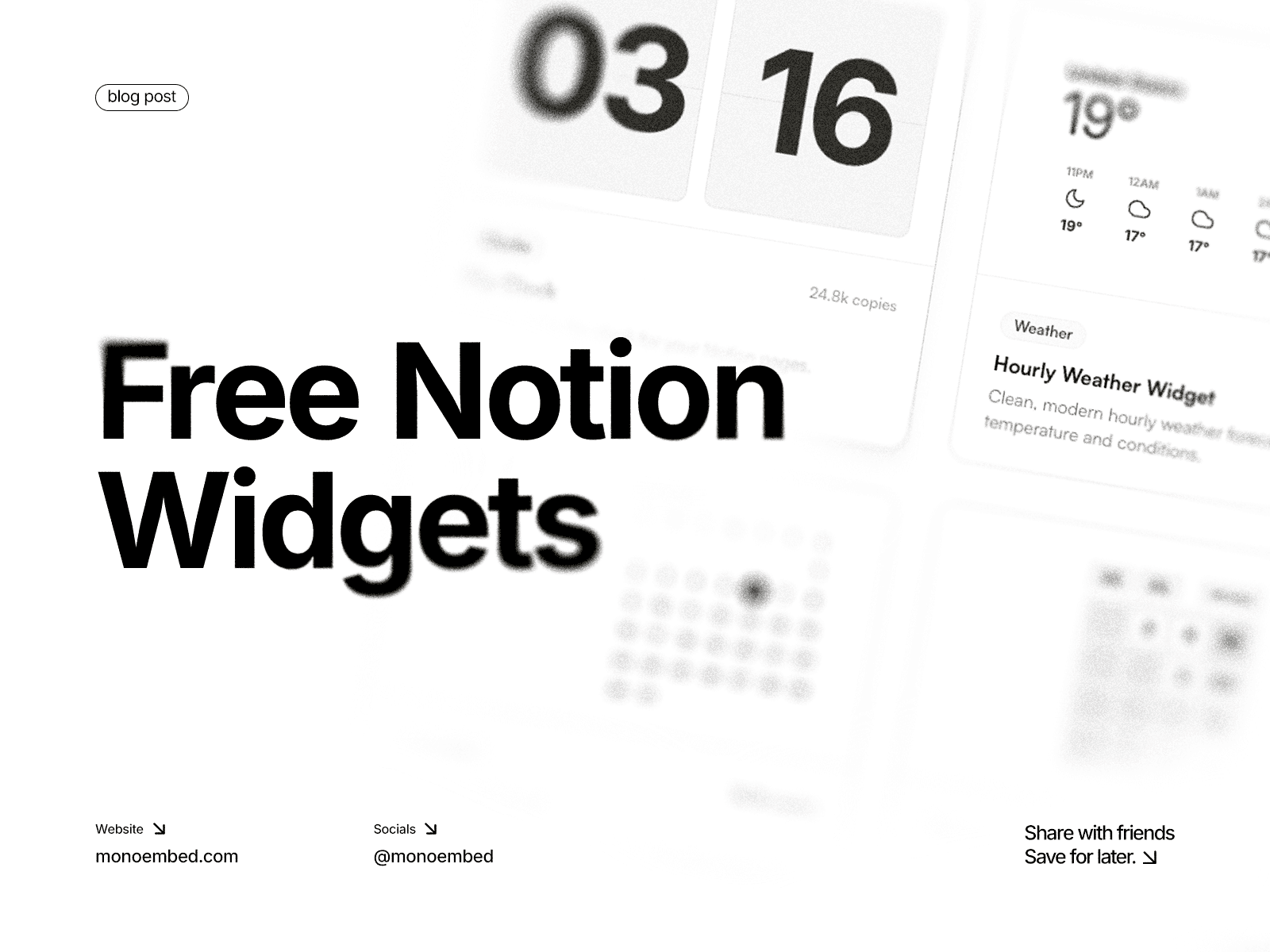
Notion doesn't come with widgets built in. If you want a live clock, a calendar, or a progress tracker sitting inside your workspace, you have to embed one from an outside source. That's normal, and it's also exactly what this guide is for.
Below you'll find the most useful free Notion widgets, what each one is actually good for, and the exact steps to get one running in your workspace in under a minute. No sign-up, no code, no cost.
What Is a Notion Widget?
A Notion widget is a small, live piece of content, usually built in HTML, that you embed inside a Notion page using the Embed block. Since Notion doesn't render widgets natively, the widget lives on an external link and Notion just displays it in an iframe. That's why every widget for Notion you'll find online, including the ones below, works the same way: you copy a link, paste it into an Embed block, and it just works.
This is different from a Notion template, which is a full page layout. A widget is a single functional piece, like a clock or a calendar, that you drop into a page you've already built.
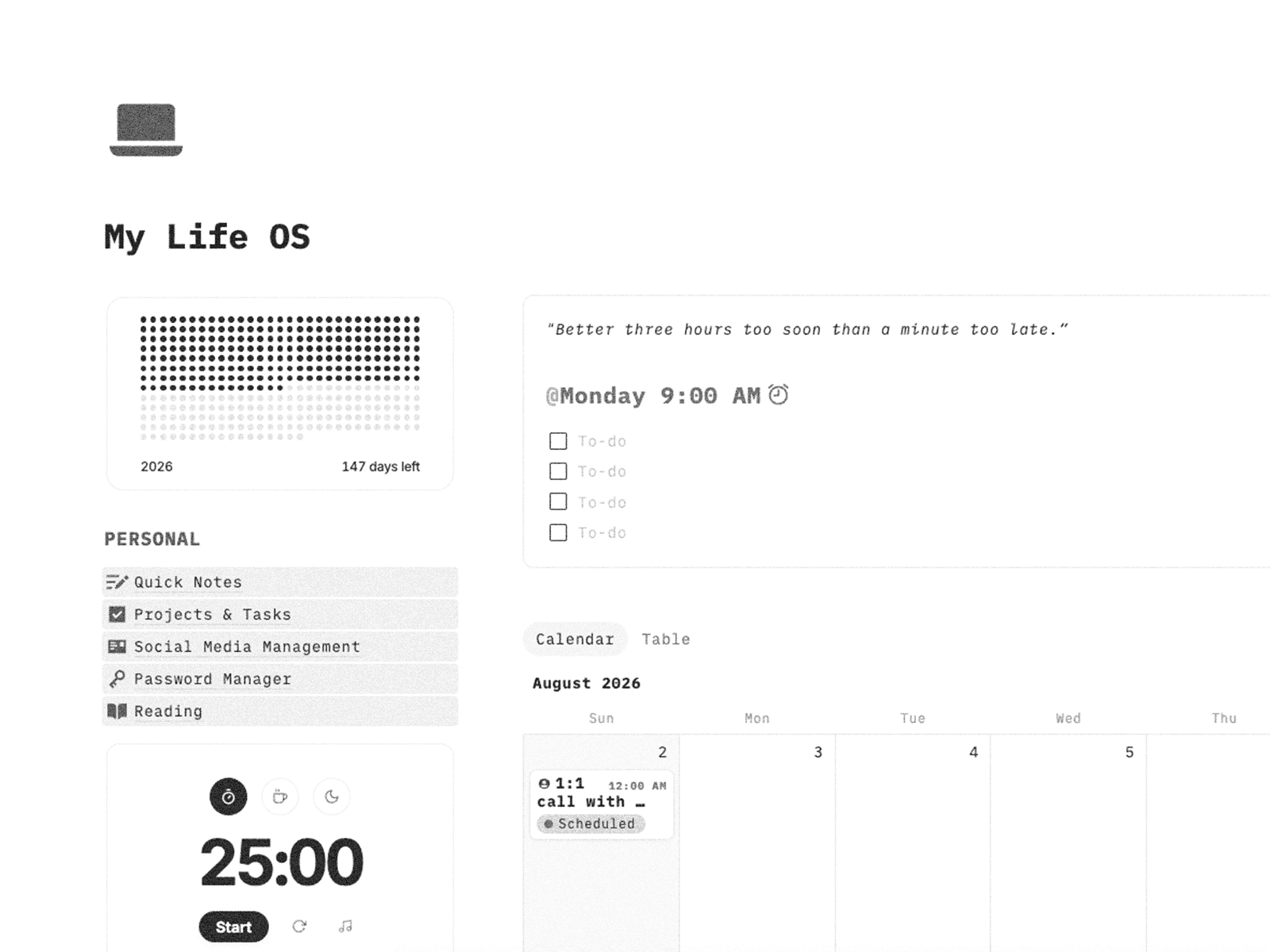
The Best Free Notion Widgets You Can Add Right Now
Every widget below is free, requires no account, and updates live inside your Notion page. Pick the one that fits your setup, or add all three.
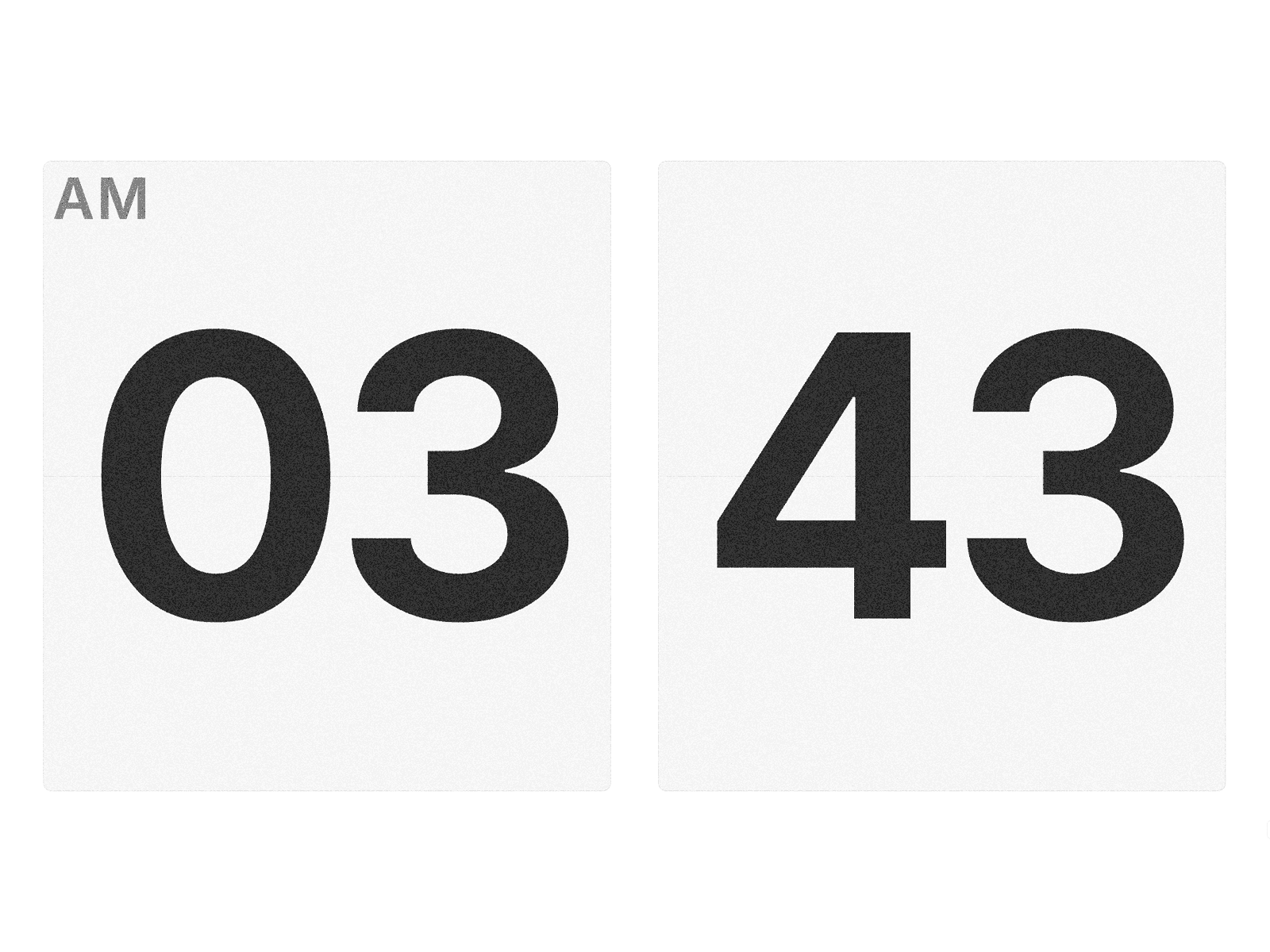
1. Notion Clock Widget
A live clock widget is one of the most requested additions to any dashboard or homepage in Notion. It's small, it doesn't clutter the page, and it gives your workspace a sense of being “alive” instead of static text and checkboxes.
Good use cases:
- Personal dashboards and daily planners
- Team homepages showing local time for remote teams
- Focus or productivity trackers where time visibility matters
MonoEmbed's clock widget is fully monochrome by default so it matches minimal, high-contrast Notion themes instead of clashing with them.
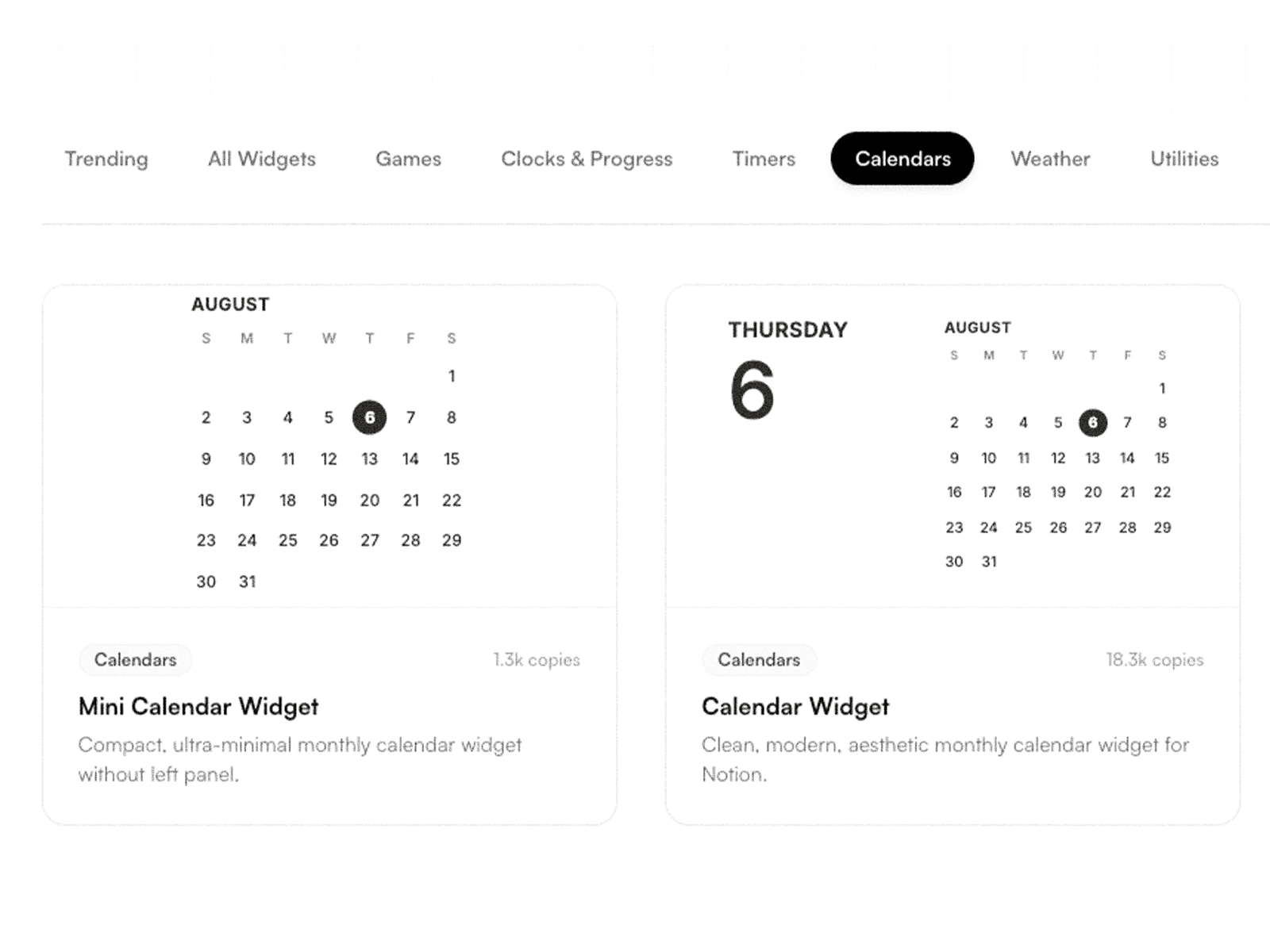
2. Calendar Widget for Notion
A calendar widget gives you an at-a-glance view of the month without switching to a separate calendar app or scrolling through a Notion database view. It's the most common widget for Notion because almost every planner, content calendar, or project tracker benefits from a visual date reference sitting right on the page.
Good use cases:
- Content calendars and editorial planning pages
- Personal weekly/monthly planners
- Shared team pages where deadlines need to be visible at a glance
3. Notion Tracker Widget
Tracker widgets cover anything you want to visually monitor over time: habits, water intake, reading goals, savings progress. Instead of building a database and a rollup formula just to see a progress bar, a tracker widget gives you the visual instantly.
Good use cases:
- Habit and goal tracking pages
- Reading or learning progress trackers
- Simple visual progress bars for personal projects
How to Add a Widget to Notion (Step by Step)
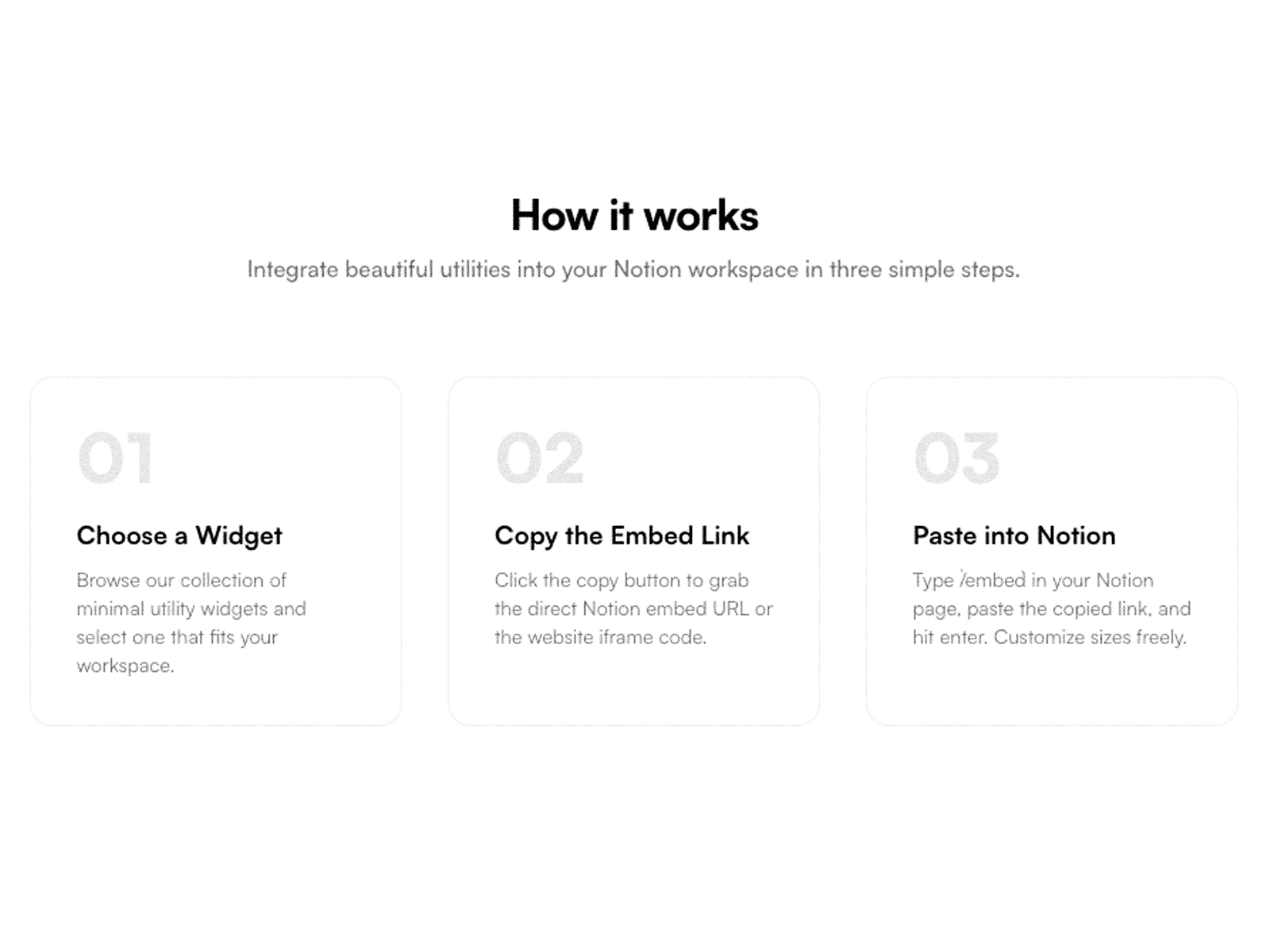
- Open MonoEmbed and pick the widget you want (clock, calendar, or tracker).
- Customize it if needed, then copy the embed link.
- In Notion, type
/embedand select the Embed block. - Paste the link and press enter.
- Resize the block by dragging its corner to fit your layout.
That's the entire process. No API key, no code, no Notion integration setup.
Why Use MonoEmbed for Your Notion Widgets
Most widget sites bury the good stuff behind a paywall or a sign-up form. MonoEmbed doesn't. Every widget on the platform is free to use, built to be lightweight so it doesn't slow down your Notion page, and designed with a consistent monochrome aesthetic so widgets from different categories still look like they belong on the same page.
If you're building a dashboard, a planner, or a client-facing workspace, that visual consistency matters more than it seems. A clock widget in one style and a calendar in another makes a page feel unfinished even if the content is solid.
Frequently Asked Questions
Are Notion widgets really free?
Yes. MonoEmbed's widgets, including the clock, calendar, and tracker widgets covered above, are free with no account or sign-up required.
Can I use a widget for Notion without any coding?
Yes. You only need to copy an embed link and paste it into a Notion Embed block. No HTML or code editing is required.
Do Notion widgets slow down my page?
A well-built widget is lightweight and loads independently inside the embed block, so it shouldn't noticeably affect your page's performance.
Can I customize the look of a widget?
Most MonoEmbed widgets support basic customization like color and size before you copy the embed link, so it can match your page's theme.
Written by
Murad
Founder & CEO
Passionate about building solutions. Notion-certified expert and founder of multiple companies, including MonoEmbed.